MIDI Repository
Introduction
The MIDI Repository is a built-in library for the MIDI files you keep on your computer. Point it at one
or more folders on disk and PianoRhythm will index every .mid / .midi file inside — pulling out the title,
composer, key, tempo, duration, time signature, and any embedded lyrics — so you can search, filter, favorite,
tag, and play them without ever leaving the app.
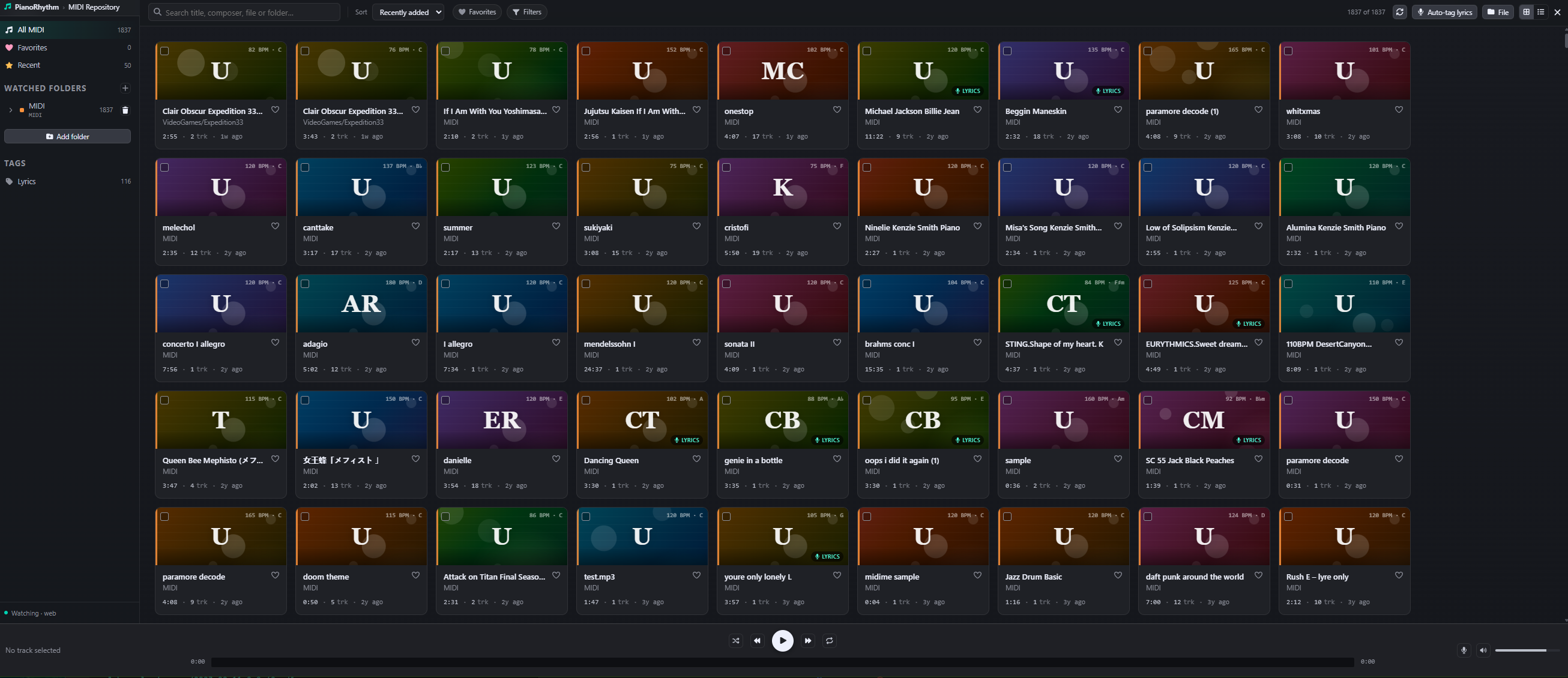
The MIDI Repository works best in the desktop app, where it can read your MIDI files directly off disk. In the browser it relies on the File System Access API, which currently requires Chrome or Edge. If your browser does not support it you'll see "local folders unavailable" in the title bar and the Add folder button will be disabled.
How to open it
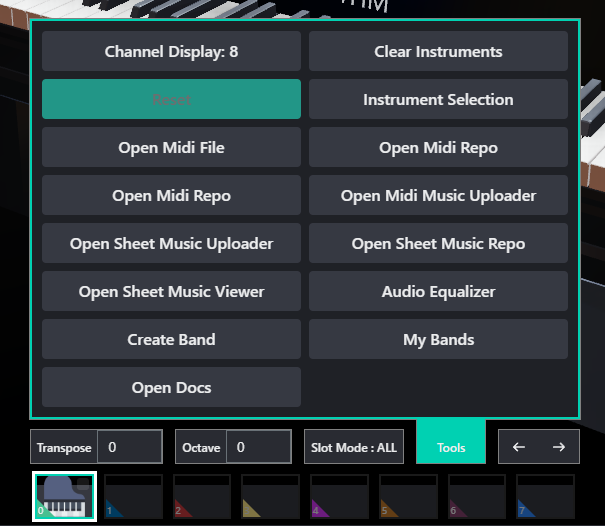
You can open the MIDI Repository from the tools button (dock) or on the bottom bar.
Adding a watched folder
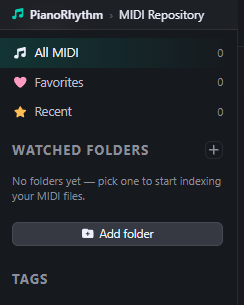
The first time you open the repository the sidebar will be empty. Click Add folder to pick a folder on your computer — PianoRhythm will scan it recursively, parse every MIDI file it finds, and add them to your library.
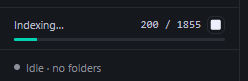
While indexing is in progress you'll see a progress strip at the bottom of the sidebar showing how many files have been processed. You can stop indexing at any time. If indexing was interrupted (for example because you closed the app) the folder is marked as partial — click the small ▶ button next to its name to resume.
Browsing the library
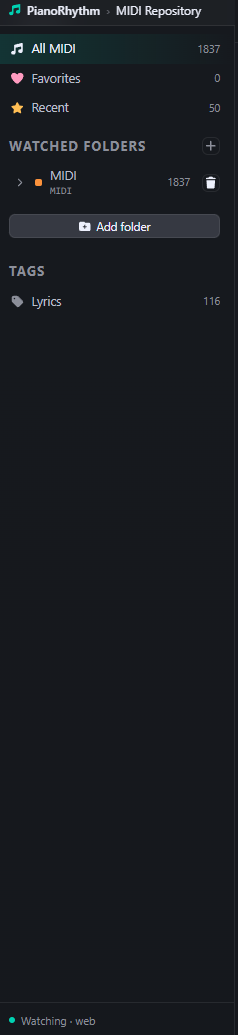
The left sidebar groups your library into:
- All MIDI — every indexed file across every folder.
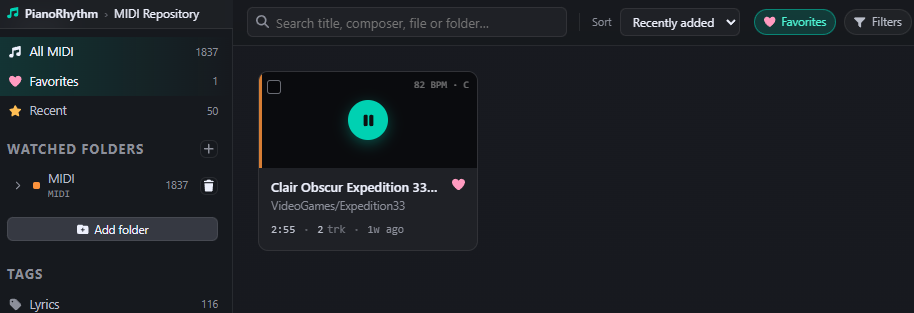
- Favorites — files you've hearted.
- Recent — the most recently added files.
- Watched folders — each folder you've added, with its own color stripe and count. Click the chevron to expand it and drill into subfolders.
- Tags — every tag in your library, with counts. Click one to filter.
Search and sort
The toolbar at the top has a search box that matches against title, composer, filename, and folder path —
so typing chopin or nocturne or part of a folder name will all work.
Next to it is a Sort dropdown with these options: Recently added, Title, Composer, Tempo (BPM), and Duration.

Filters
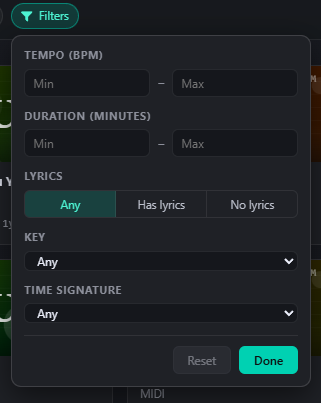
Click Filters in the toolbar to open the filter popover. You can filter by:
- Tempo (BPM) — minimum and maximum.
- Duration (minutes) — minimum and maximum.
- Lyrics — Any / Has lyrics / No lyrics.
- Key — pick from the keys present in your library.
- Time signature — pick from the time signatures present in your library.
The Filters chip shows a badge with the number of active filters. Click Reset to clear them.
Grid and list views
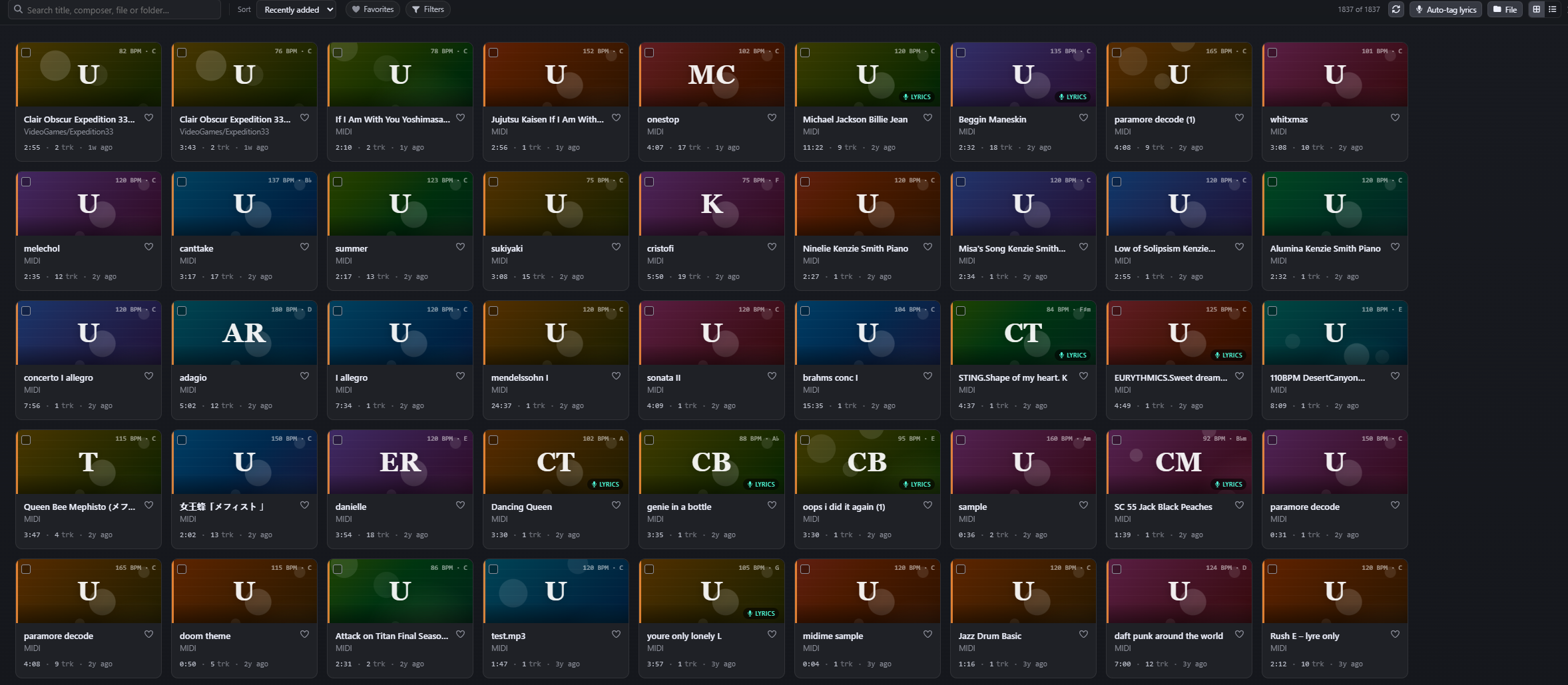
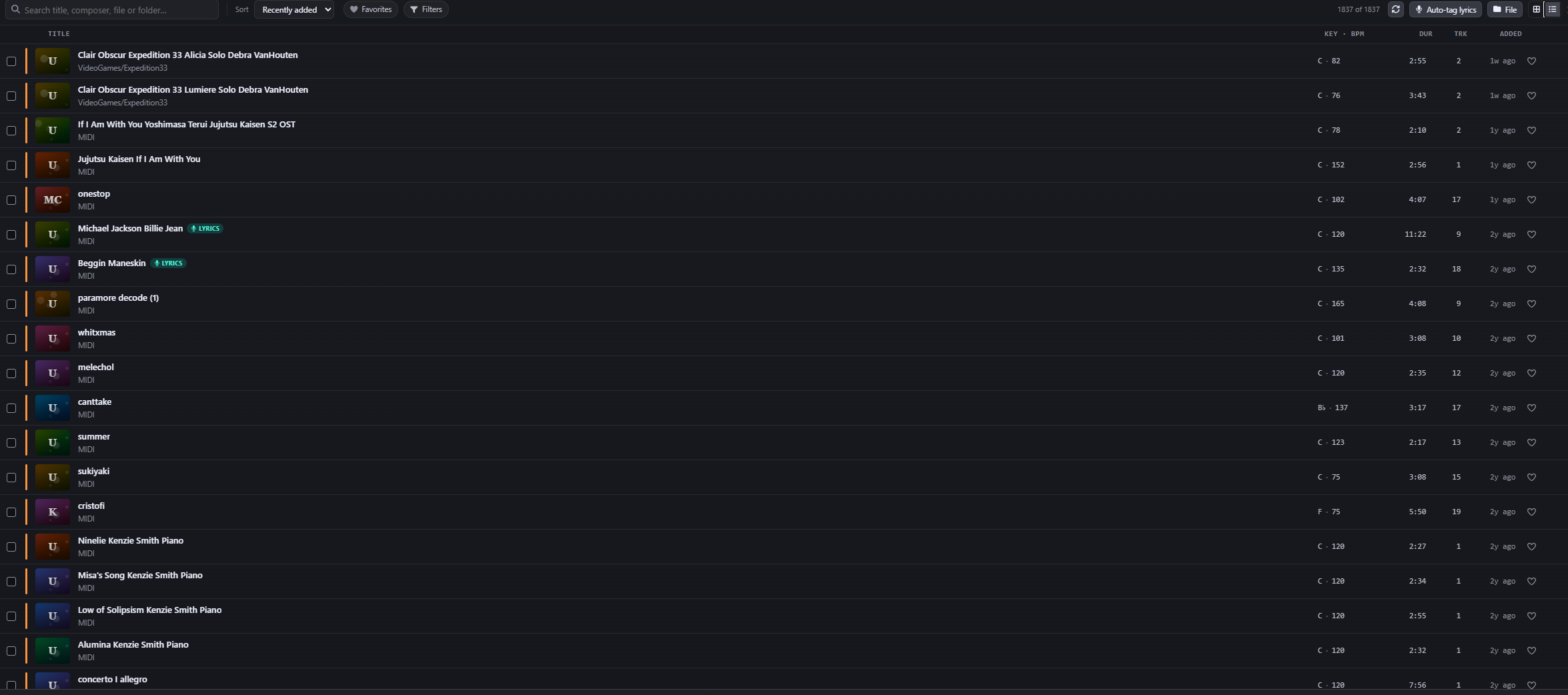
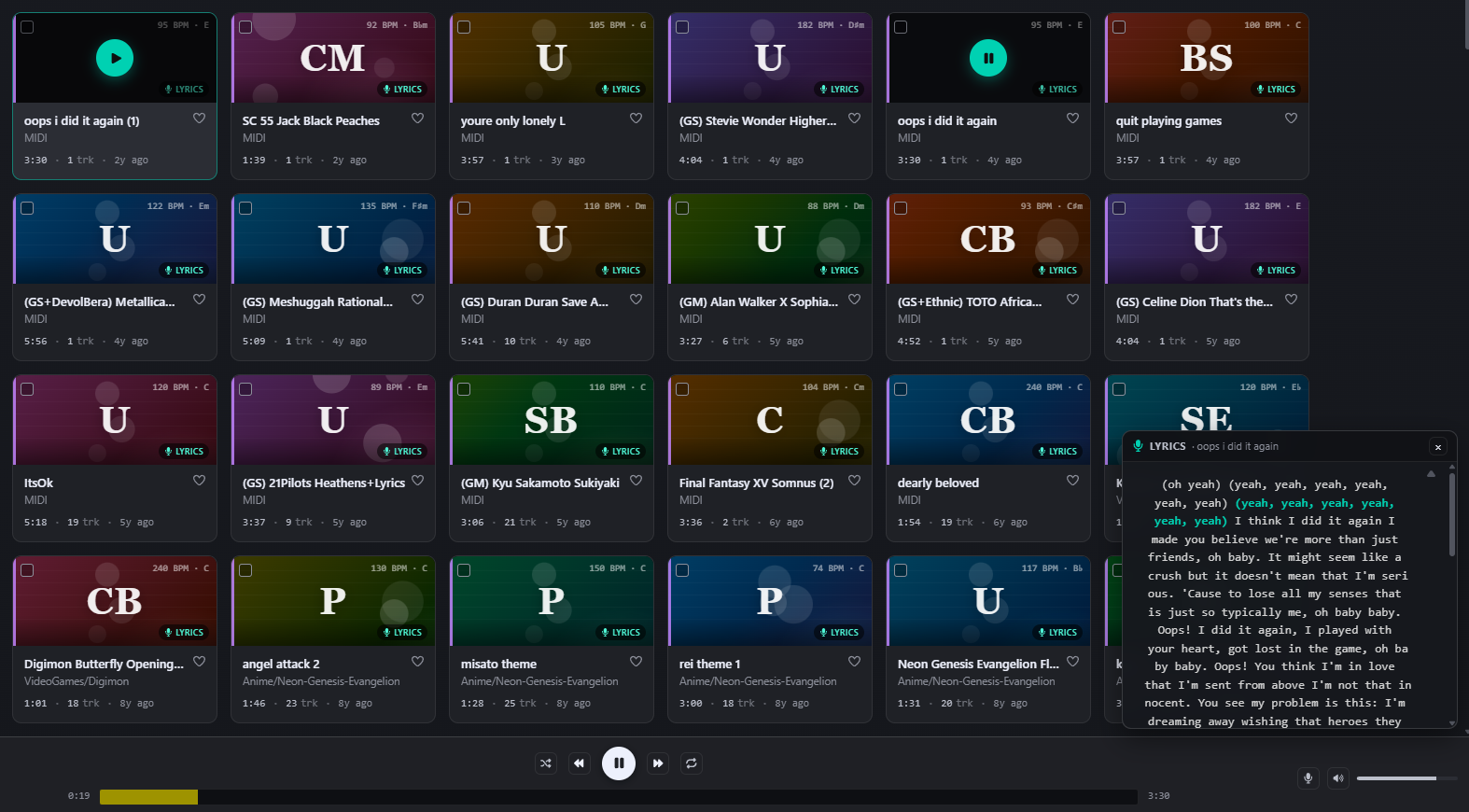
Use the view toggle in the top-right of the toolbar to switch between grid (large cards with cover art) and list (compact rows). The button next to it toggles the title mode — either show the file & folder name, or the MIDI title & composer parsed from the file's metadata.
Playing a MIDI file
Click any card or row to start playing it. The player bar at the bottom of the window has play/pause, previous, next, a seek bar, volume, and mute. Previous and Next cycle through whatever list you're currently looking at — so they respect your active folder, search, and filters.
You can close the MIDI Repository while a song is playing — playback continues via PianoRhythm's standalone MIDI Player UI, and reopening the repository picks up wherever it left off.

Lyrics panel
When a playing MIDI file has embedded lyrics, a Lyrics panel slides in showing the lyric text with the active syllable highlighted as the song progresses. You can hide the panel with the × in its header; while a track with lyrics is still playing, a small floating Lyrics button at the bottom-right brings it back.
Favorites and tags
Click the heart on any card or row to favorite it. The Favorites entry in the sidebar (and the Favorites chip in the toolbar) filters the list down to your favorites.
Tags appear in the sidebar under Tags with the number of files that have each tag. Click a tag to filter to it; click again to clear.
The Auto-tag lyrics button in the toolbar scans the cached MIDI files and adds a lyrics tag to every
one that contains embedded lyric text — handy for quickly building a "songs I can sing along to" filter.

Rescanning and removing folders
The circular-arrow Rescan button in the toolbar re-reads the active folder (or all folders, if All MIDI is selected) to pick up any new or changed files on disk.
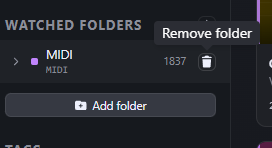
To remove a folder from the library, hover over it in the sidebar and click the trash icon. This only removes it from PianoRhythm's index — your files on disk are not touched.

Browser support
If you're using PianoRhythm in a browser, the MIDI Repository requires the File System Access API to read folders from your computer — at the time of writing that means Chrome or Edge. In other browsers you'll see "local folders unavailable" and the Add folder button will be disabled.
For the best experience — including reading MIDI files directly from disk without a copy-into-the-browser step — use the PianoRhythm desktop app.