Managing Members
Bands are built around their members. This page covers joining a band, the members list, and the actions available to each role.
Roles
A band has three roles, listed from highest to lowest authority:
| Role | Who has it | Can do |
|---|---|---|
| Owner | The user who created the band. There is exactly one. | Everything — accept/deny join requests, kick anyone, promote/demote, edit band, delete band, manage profile image. |
| Admin | A member the Owner has promoted. | Accept/deny join requests, remove regular Members. |
| Member | Everyone else who has been accepted into the band. | Leave the band, set it as their active band. |
Admins cannot kick the Owner or another Admin, change anyone's role, edit band details, or manage the profile image — those remain Owner-only.
Joining a band
The easiest way to find a band is the Bands tab in the Bands modal. It lists every band on the server, with a search box at the top and infinite-scroll pagination as you scroll. Type a name or tag to filter the list, then click a band to open its detail view.
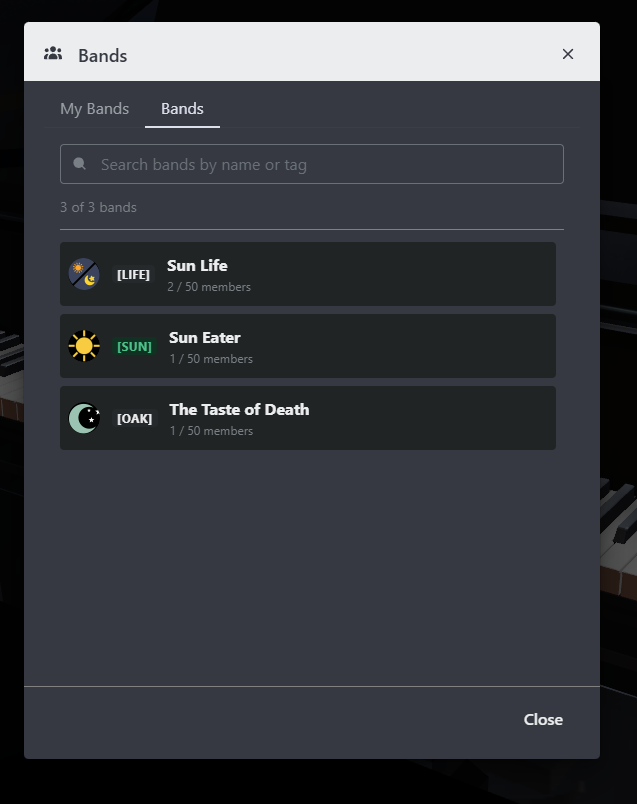
From a band you're not in, click Request to Join to submit a join request.
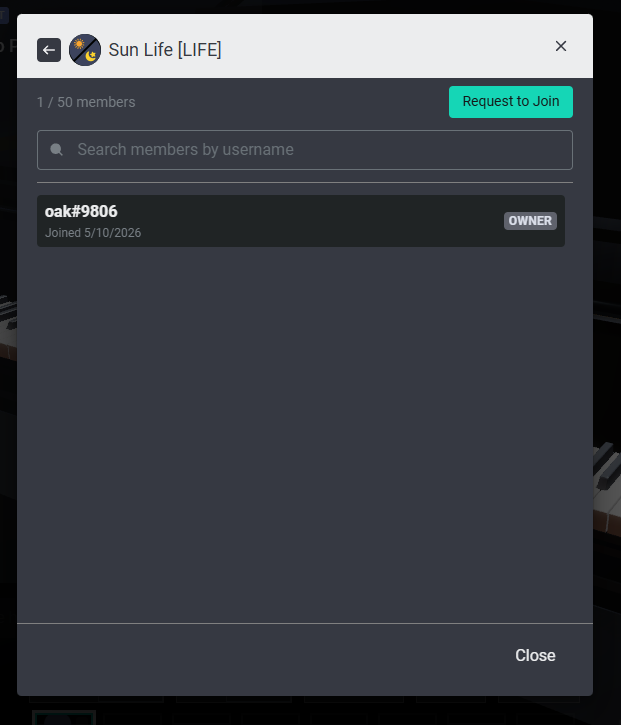
- The band's owners and admins see your request and decide whether to accept or deny it.
You can be in up to 3 bands at once. If you've reached the limit, leave one first or wait for an existing membership to end.
Approving requests (Owner or Admin)
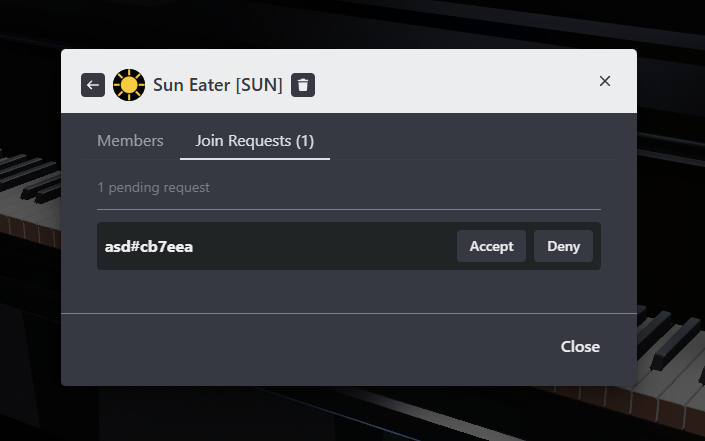
Open the band's detail view in the Bands modal and switch to the Join Requests tab. This tab is only visible to Owners and Admins; a badge on the tab shows the number of pending requests.
For each request you can:
- Accept — the user becomes a member immediately.
- Deny — the request is rejected.
Each row shows the requester's username, the date they requested, and the optional message they attached. While an action is in flight, the other buttons on that row are temporarily disabled.
The members list
Open a band from either tab of the Bands modal to see its detail view. The detail view itself has two tabs:
- Members — the band's roster (default).
- Join Requests — pending requests, visible to Owners and Admins only.
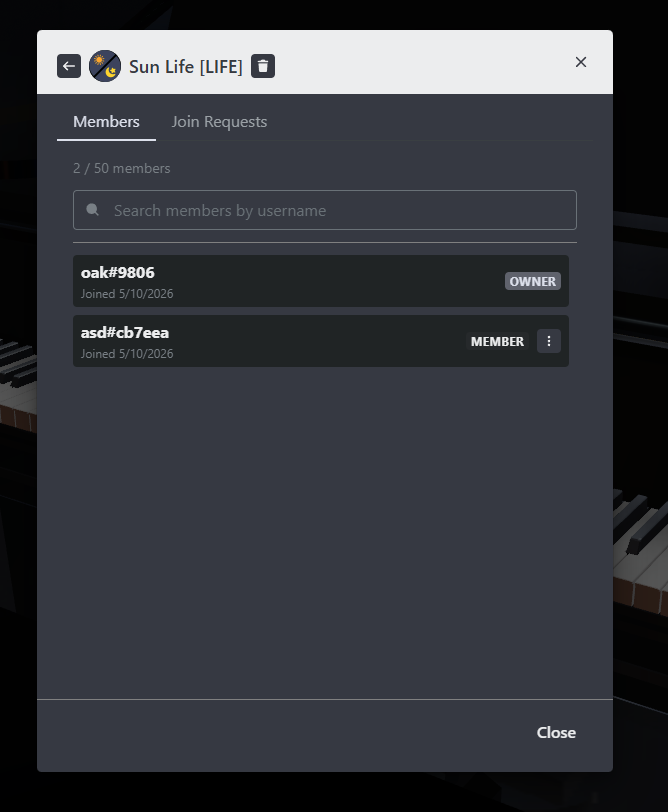
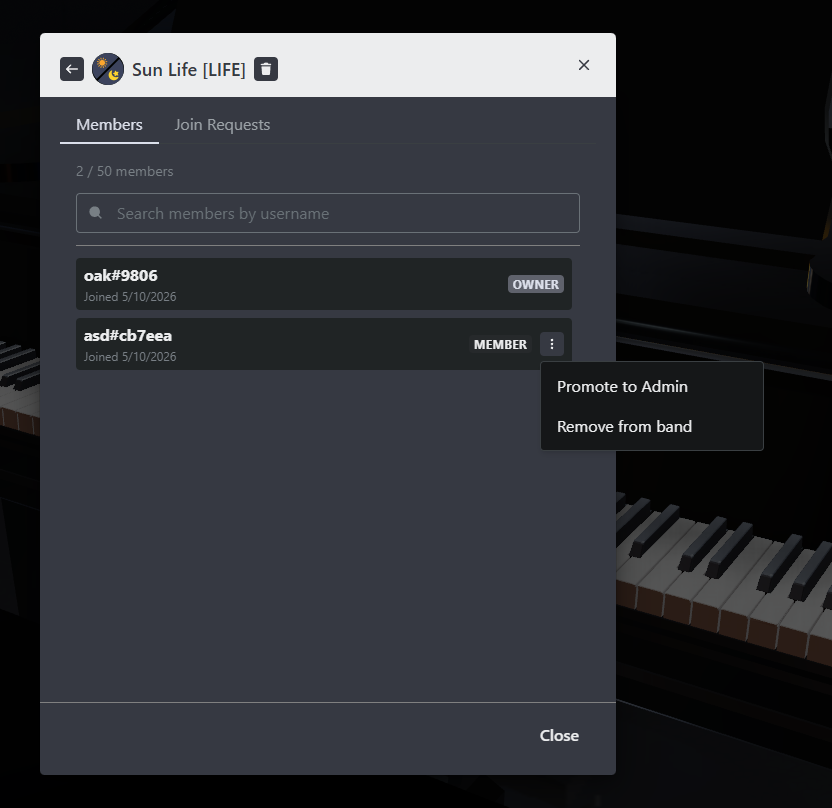
Each row shows:
- Username (with avatar)
- Role badge — Owner, Admin, or Member
- Joined date — when the user joined the band
- An actions menu (kebab icon) on the right, visible when you have permissions to act on that row
At the top of the list you'll find:
- A search box that filters members by username (case-insensitive substring match).
- A member count, like
12 / 50 members. When a search filter is active, the count reflects the filtered results.
The list uses virtualized scrolling, so it stays smooth even with many members.
Leaving a band
As a member, you can leave a band any time from its detail view. You'll lose your membership immediately and will need to submit a new join request if you want to rejoin later.
The band owner can't leave their own band. Ownership is permanent for the life of the band.
Promoting and demoting (Owner)
Only the Owner can change a member's role. Open the actions menu on a member row and choose:
- Promote to Admin — appears on a Member row. Grants the member the ability to recruit and remove regular Members.
- Demote to Member — appears on an Admin row. Returns them to a regular Member with no management permissions.
The Owner's own role is fixed and cannot be transferred.
Removing a member
The kebab menu on each member row shows a Remove from band action when you're allowed to use it:
- Owner — can remove any Admin or Member (but not themselves).
- Admin — can remove regular Members only. Removing the Owner or another Admin is not allowed; if you try via the API directly, the server returns
403 Insufficient band permissions. - Member — sees no remove action.
Removing a user kicks them out immediately and frees a slot toward the band's 50-member cap. If the removed user had this band set as their active band, the tag is cleared from their profile.
